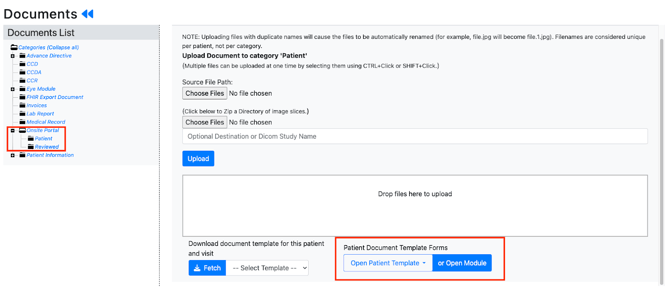
To assign form to specific set of patients:
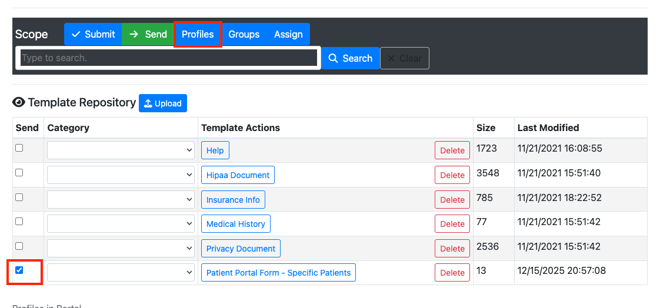
- Click the checkbox for the form in the Send column and then click “Profiles”. This adds the template to a Profile.
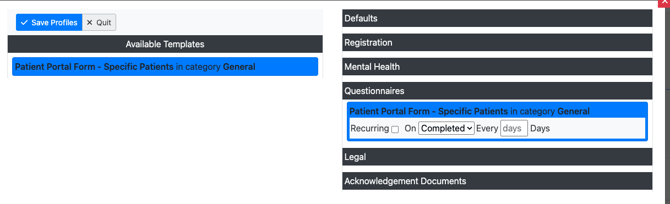
- Drag and drop the form to the Profile Category and click “Save Profiles”
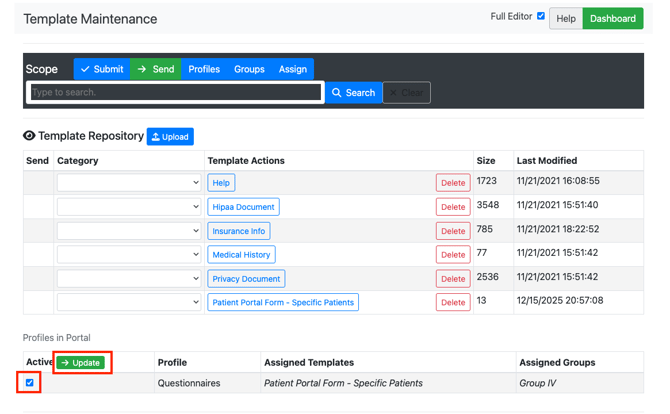
- The form will show up in “Profiles In Portal” section of the Template Repository.
- Note:
- If your form is not showing up in the profile section, confirm that the form is not showing up in the “Default Patient Templates” section. Forms that are available as default templates are not available to assign to specific profiles and groups as they are available to all patients. Delete the template from the “Default Patient Templates” if you only want the form available to a subset of patients.
- Add your patient(s) to a Group.
- Click Groups.

- Search for your patient and assign them to the appropriate Group.
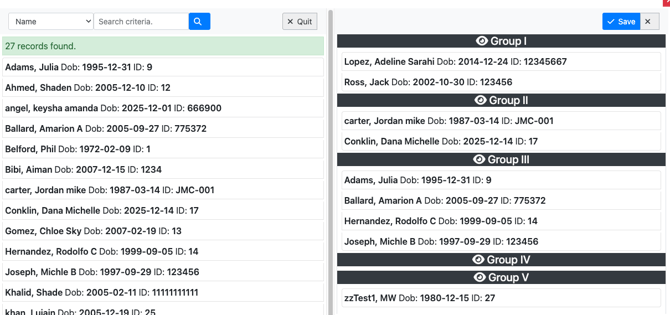
- Click Groups.
- Select the form again and click “Assign”
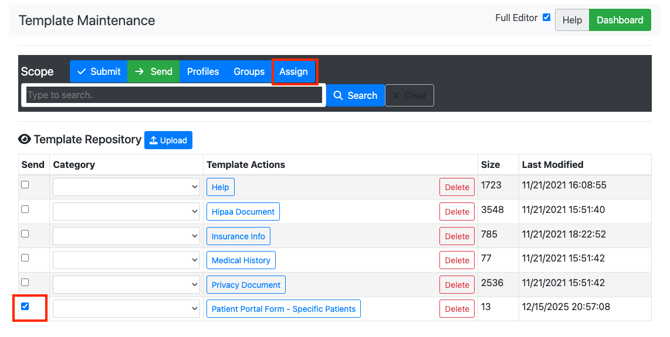
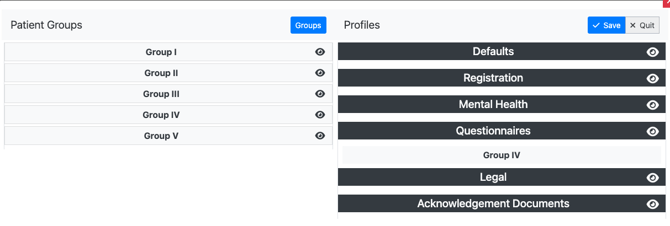
- Associate the Profile with the Group.
- Select the form in the “Profiles in Portal” section and click “Update”.
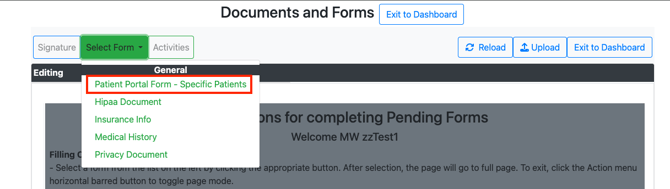
- To test, login as a patient In the Patient Portal that was assigned to the group. Confirm that the form shows up.
- Note: If you assign the the patient to a different group, the form should no longer be available. To view/modify a patient’s group, go to the patient chart > Demographics > Choices
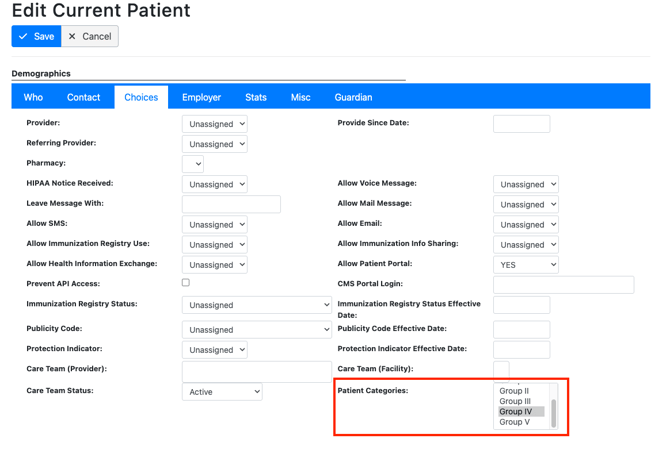
- Note: If you assign the the patient to a different group, the form should no longer be available. To view/modify a patient’s group, go to the patient chart > Demographics > Choices
- To view the completed patient form, navigate to the patients chart and select Documents > Onsite Portal > Patient Document Template Forms