
Add a LBF to the Patient Portal
- Get the Layout ID number of the form.
- Go to Admin > Forms > Layouts.
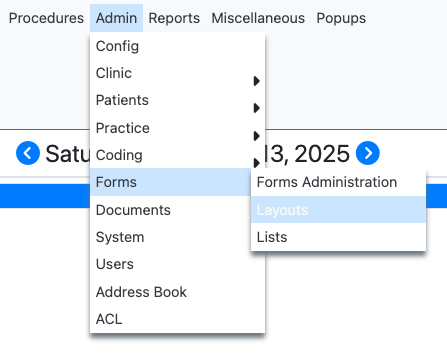
- Select the form and click “Layout Properties”

- The popup modal will contain the Layout ID.
- Go to Admin > Forms > Layouts.
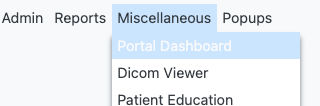
- Go to Miscellaneous > Portal Dashboard
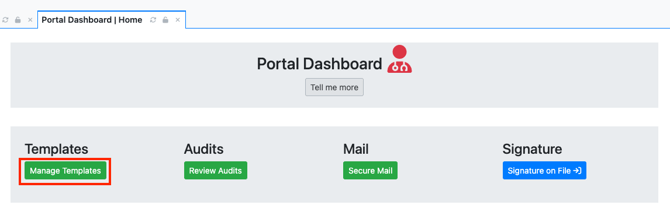
- Click on Manage Templates.
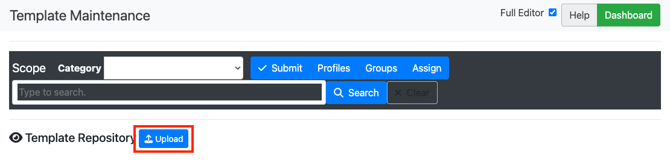
- Select “Upload” from Template Repository
- Select “New Empty Template” and name your template.
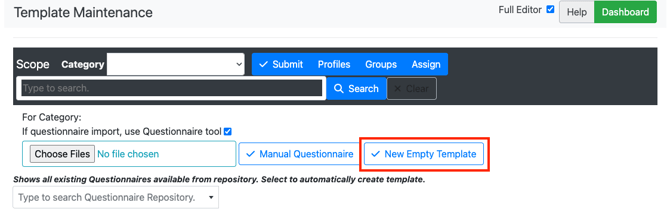
- In Template Repository, click on your template, which will open up the template in edit mode.
- Delete any default text that may be in the template. Add the following directive to the form:
-
- {EncounterForm:<LayoutID>}
- Where the <LayoutID> is the value from Step 1.
- For example, if LayoutId was sdoh, then the directive would be {EncounterForm:sdoh}.
- {EncounterForm:<LayoutID>}
-
- Important tip: The entry should not contain any special formatting, which may be carried over when copy-pasting the layout iD. You can confirm that no formatting carried over by switching to code view and ensuring no additional characters have been added.


- This is an example where formatting has been carried over, which will break the form from showing up in the Patient Portal.

- This is an example where formatting has been carried over, which will break the form from showing up in the Patient Portal.
- Click “Send” checkbox and then click “Send” button.
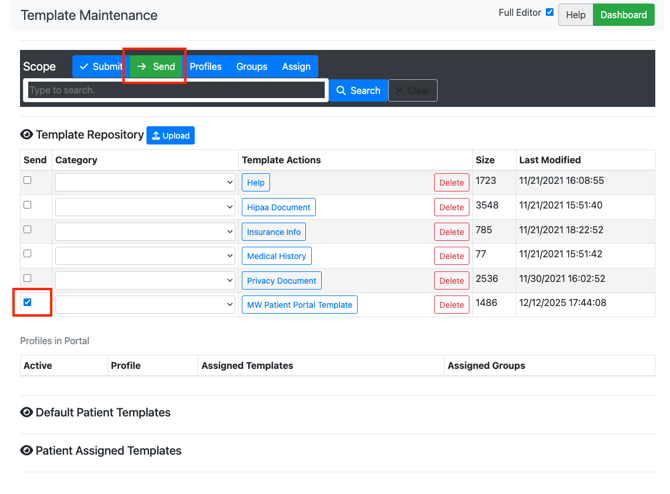
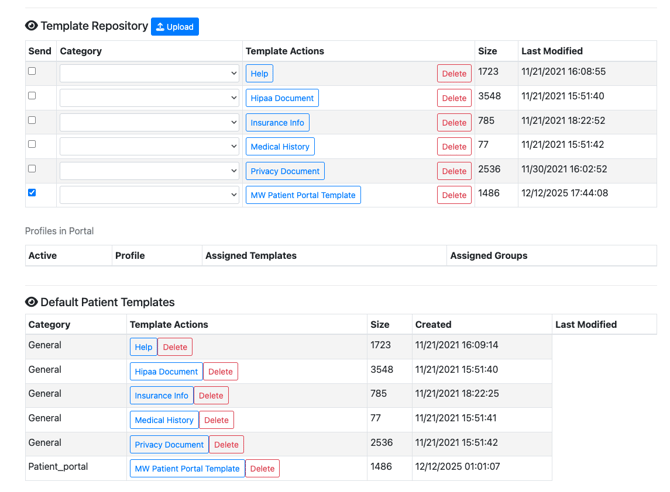
- The form will now show up in the “Default Patient Templates” section. Any future changes to the form should be done in the Default Patient Templates section.
- Confirm the document is available in the patient portal.
- Login to the Portal as a patient.
- Select “Clinical Documents”.
- Select the form from the “Select form” dropdown.